We want to reiterate that if you want to unlock your iPhone then you shouldn't use this guide as Redsn0w doesn't preserve baseband.
You can follow these step-by-step instructions to jailbreak your iPhone and if you don't care about unlocking your iPhone:
Step 1: Download Redsn0w 0.9.8b4 (Mac and Windows) and extract the application in a folder named "Redsn0w" on your desktop.
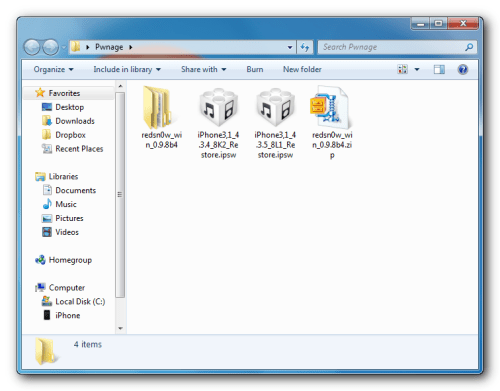
Step 2: You need to download iOS 4.3.5 and iOS 4.3.4 firmware files and save folder Redsn0w
iPhone 4:
iOS 4.3.5 firmware file for iPhone 4 users (iPhone3,1_4.3.5_8L1_Restore.ipsw)
iOS 4.3.4 firmware file for iPhone 4 users (iPhone3,1_4.3.4_8K2_Restore.ipsw)
iPhone 3GS:
iOS 4.3.5 firmware file for iPhone 3GS users (iPhone2,1_4.3.5_8L1_Restore.ipsw)
iOS 4.3.4 firmware file for iPhone 3GS users (iPhone2,1_4.3.4_8K2_Restore.ipsw)
Step 3: Connect your iPhone to the computer, which should automatically launch iTunes.

Skip steps 4, if your iPhone has already been upgraded to iOS 4.3.5.
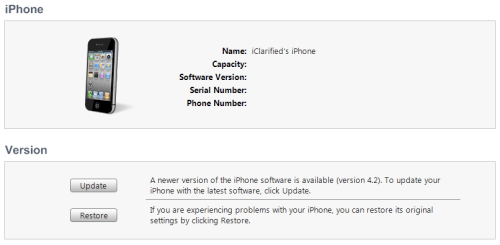
Step 4: From the 'Devices' section on the left pane of iTunes, select your iPhone device. Now, hold down the Shift button (Option button for Mac users) and click the 'Restore' button. Notice: Restore the iPhone will lose all data.
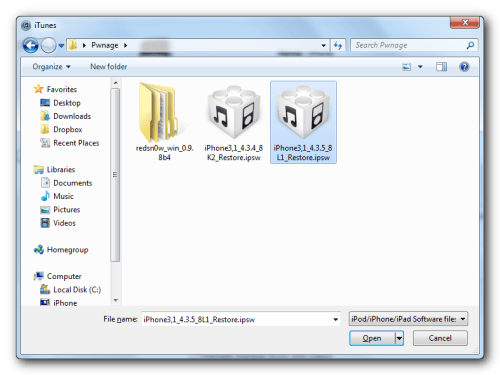
Navigate to the Redsn0w folder on the desktop and select the downloaded iOS 4.3.5 firmware file (iPhone 4 users: iPhone3,1_4.3.5_8L1_Restore.ipsw, iPhone 3GS users: iPhone2,1_4.3.5_8L1_Restore.ipsw). Click on the 'Choose' button to let iTunes update your iPhone with the required firmware. You will be asked to setup your iPhone either from a previous backup or setup as a new iPhone, select the backup you want for your device (ideally should be the most recent one). Wait for iTunes to finish.
Step 5: Navigate back to the Redsn0w folder and launch the Redsn0w application.
Note: Windows 7 users should run the exe in Windows XP compatibility mode (right-click on the Redsn0w exe and select Properties, then select the Compatibility tab and select Run this program in compatibility mode for Windows XP). Windows XP and Windows 7 users should run Redsn0w as ‘Administrator’ (right-click on the Redsn0w exe and select 'Run as an Administrator').
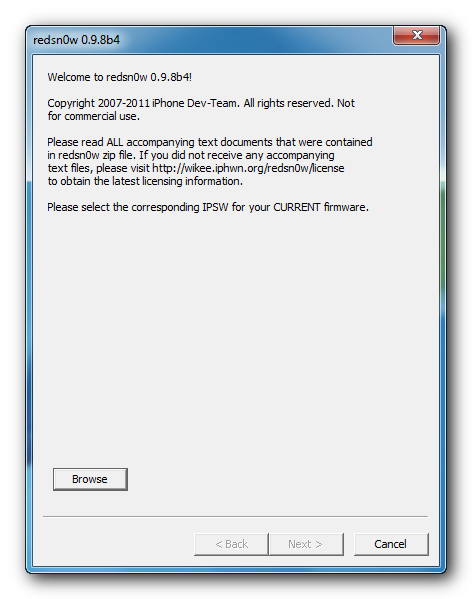
Click on the Browse button and select the iOS 4.3.4 firmware file (iPhone 4 users: iPhone3,1_4.3.4_8K2_Restore.ipsw, iPhone 3GS users: iPhone2,1_4.3.4_8K2_Restore.ipsw).
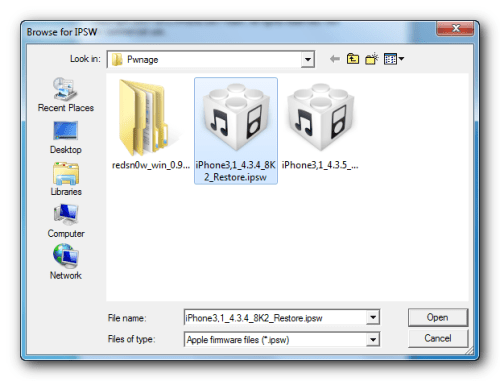
Step 6: Redsn0w will verify the firmware file and inform you if it has successfully identified it. Click on 'Next' to proceed.
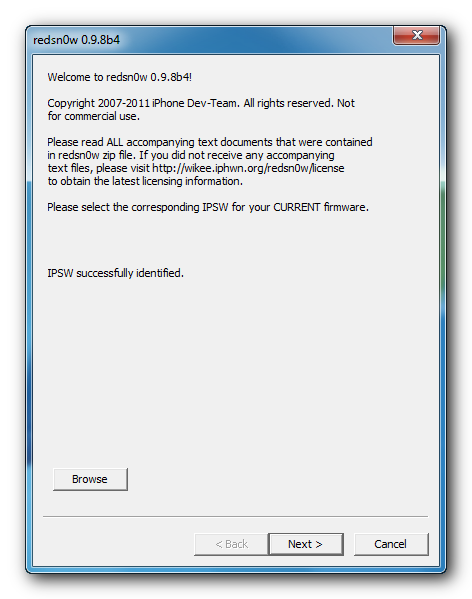
Step 7: Redsn0w will now start preparing the jailbreak data.
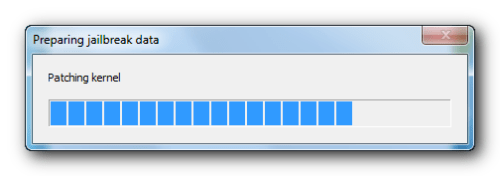
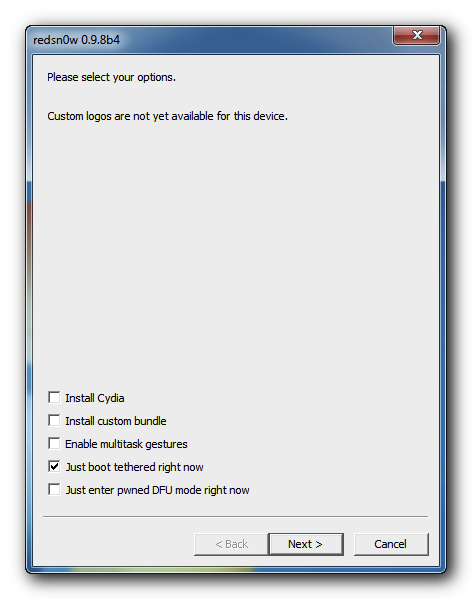
Step 8: You will now be prompted to select the jailbreak options you would like. Make sure Cydia is selected and select 'Next' to continue.
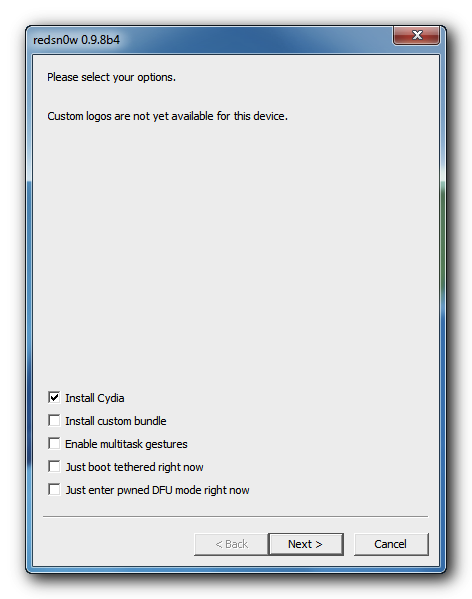
Step 9: You will now be prompted to switch OFF your iPhone and plug it to the computer. Follow the instructions and click on 'Next' to move to the next screen:
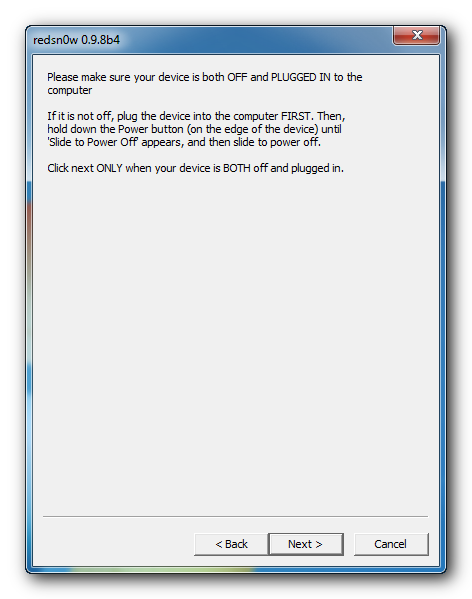
You will now need to put your iPhone into the DFU mode. Redsn0w will take you through the necessary steps:
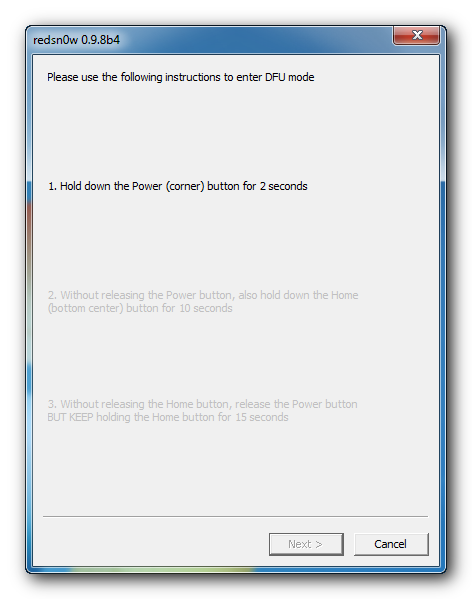
(a) Hold the Power button on iPhone down for 3 seconds
(b) Now simultaneously hold the iPhone and keep the two buttons pressed for 10 seconds
(c) Now release the Power button while keeping the Home button pressed for 20 seconds until Redsn0w identifies the device
Step 10: Your iPhone should reboot now.
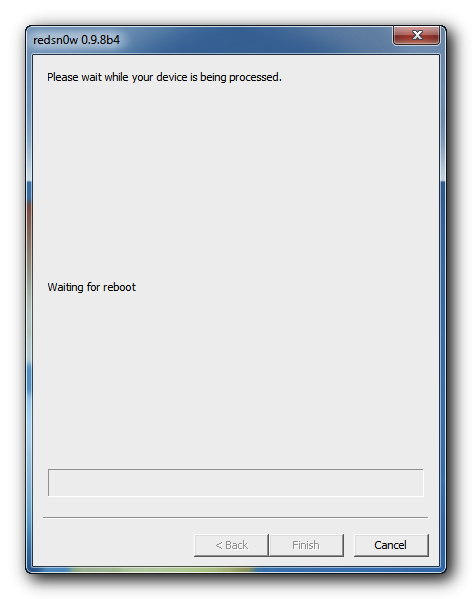
Step 11: Redsn0w will now begin uploading the new RAM disk and kernel.
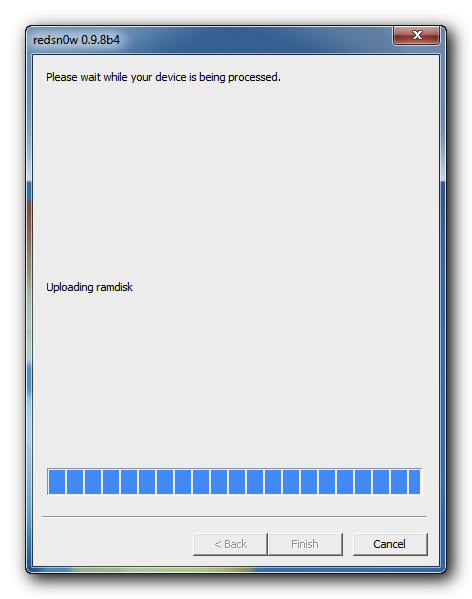
Step 12: You will now be notified once the jailbreaking process is complete. Click on the 'Finish' button to exit the application.
Your iPhone will reboot once again (which could take approximately 5 minutes). After it has rebooted, your iPhone should be successfully jailbroken. You should find Cydia jailbreak app on your iPhone’s home screen. If you've problems with Cydia, try to reboot your iPhone to resolve the issue.
Important: BOOT TETHERED
When the iPhone jailbreak has been done, every time you want to use Redsn0w toreboot iPhone and you need to run RedSn0w Just select the boot tethered right nowand click the Next button is finished.
When the iPhone jailbreak has been done, every time you want to use Redsn0w toreboot iPhone and you need to run RedSn0w Just select the boot tethered right nowand click the Next button is finished.
Thanks very much for iPhone Dev-Team
